01
Upload an image.
Choose a clear photo, screenshot, menu, sign, label, or product picture that contains readable text. The AI image translator accepts image input and prepares it for OCR.
The AI image translator follows a simple OCR and translation flow.
Start with a single image that contains visible printed text. The AI image translator should keep the workflow narrow: one upload, automatic language detection, target language selection, OCR text, and translated text. This matches users who want to translate text from image files without promising batch processing, image redesign, or layout-preserved export.
Choose a clear photo, screenshot, menu, sign, label, or product picture that contains readable text. The AI image translator accepts image input and prepares it for OCR.
The AI OCR translator reads the visible words in the image and extracts the original text. This step is useful when you want to translate text from image files without manually copying anything.
Select English, Spanish, Chinese, Japanese, Korean, French, German, or Portuguese. The source language can be detected automatically, so the AI image translator keeps the workflow simple.
The AI image translator translates the extracted text into your target language and shows the original text and translated result clearly.
Use the translated text to understand the image, compare the original wording, or copy the translation into your notes, travel plan, product research, or work document.
Use the AI image translator to translate image of menu text when you travel, order food, or compare dishes. Upload a clear menu photo and translate item names, ingredients, prices, and notes into your target language.
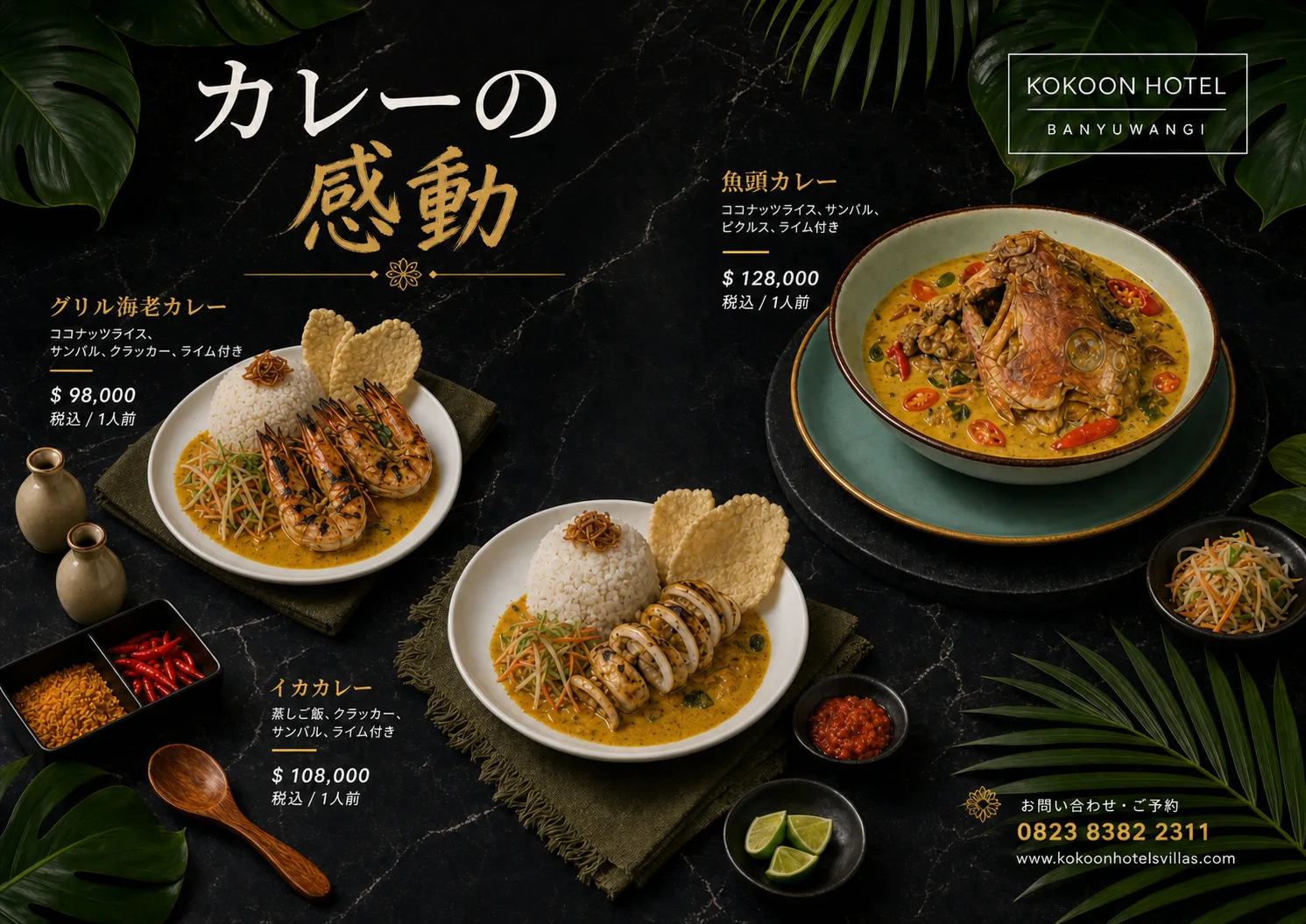
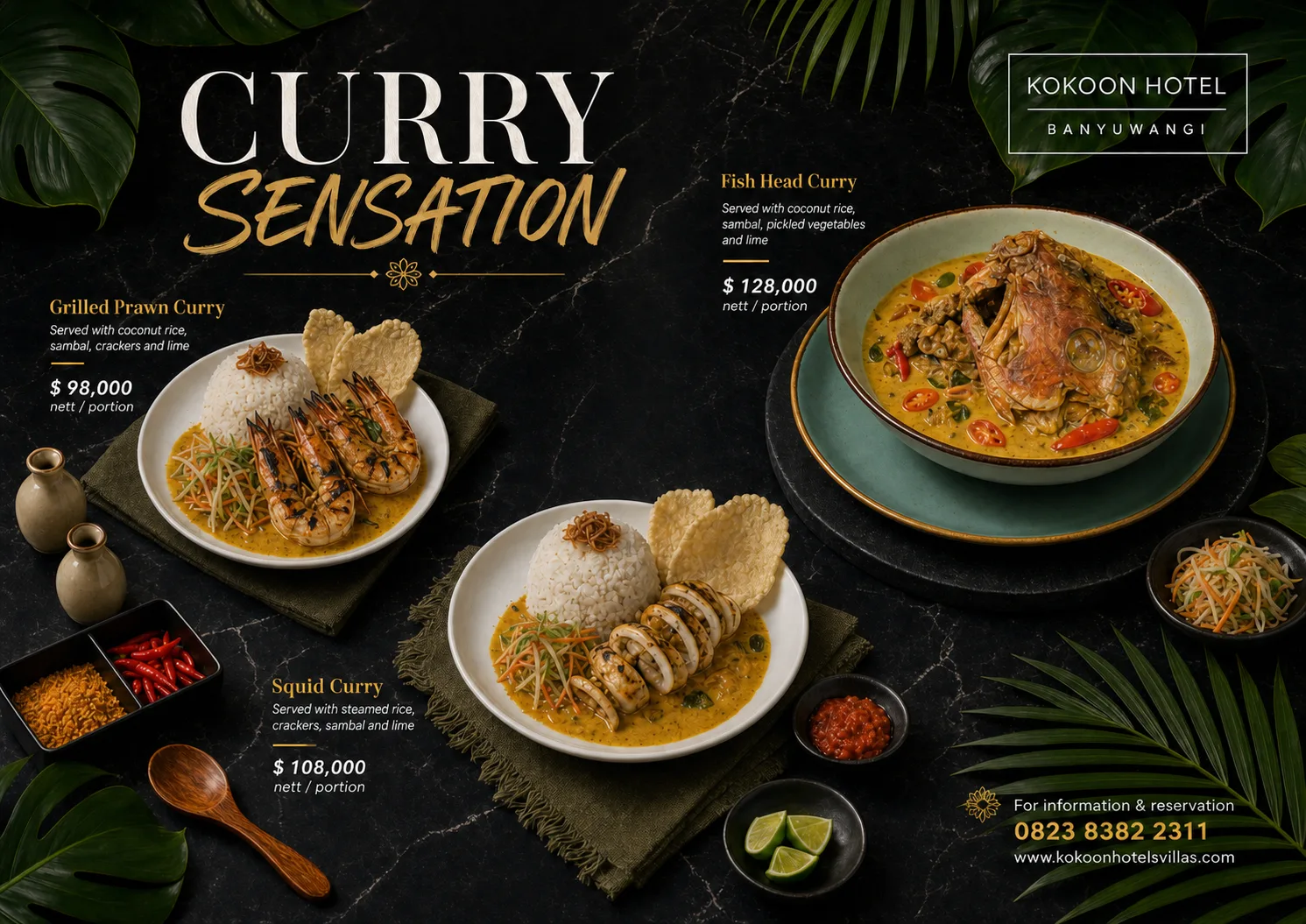
Use the AI image translator to translate image of sign or label text from notices, stickers, captions, packaging, or travel instructions. A clear photo helps the tool extract the words and return a readable translation.
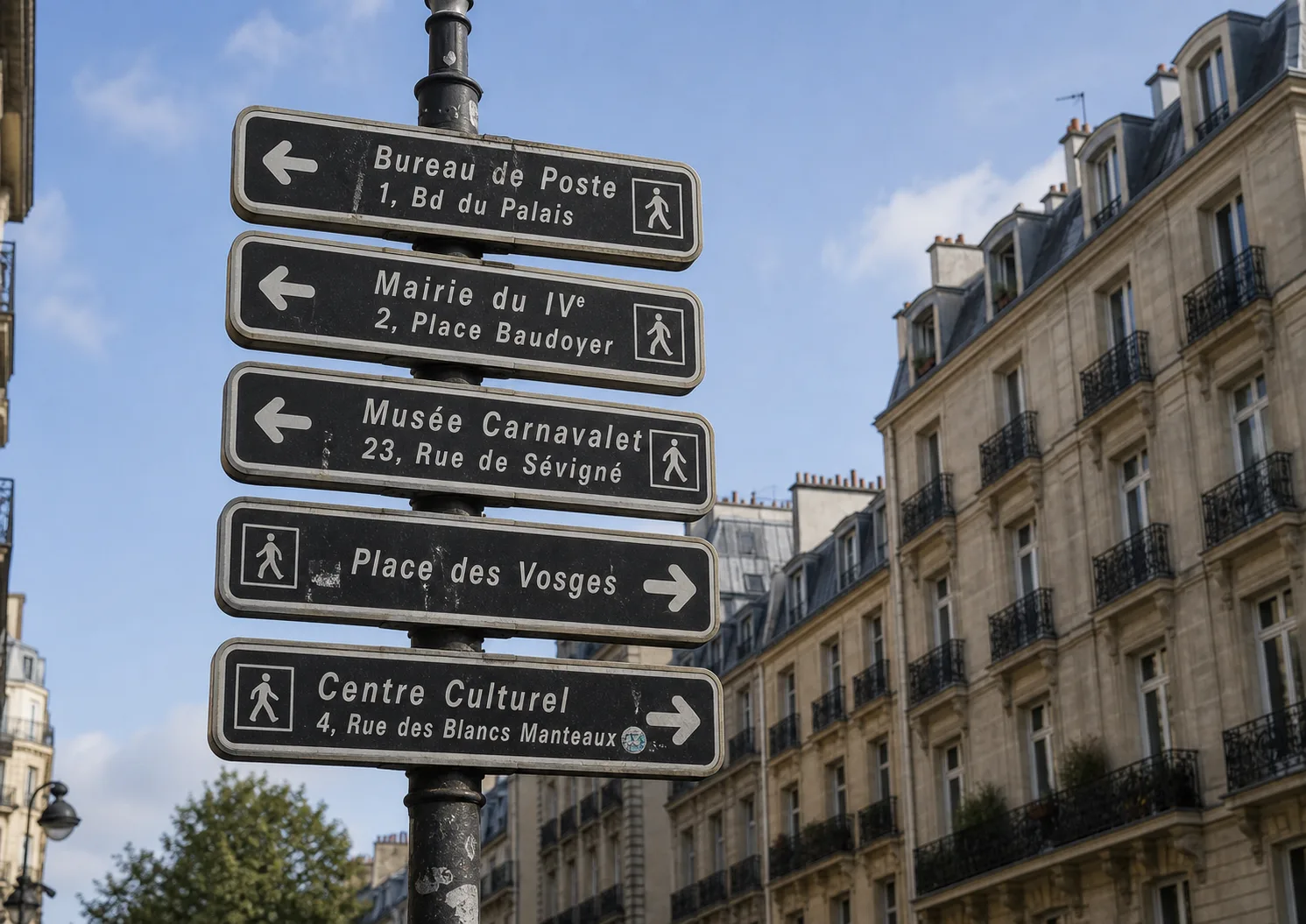
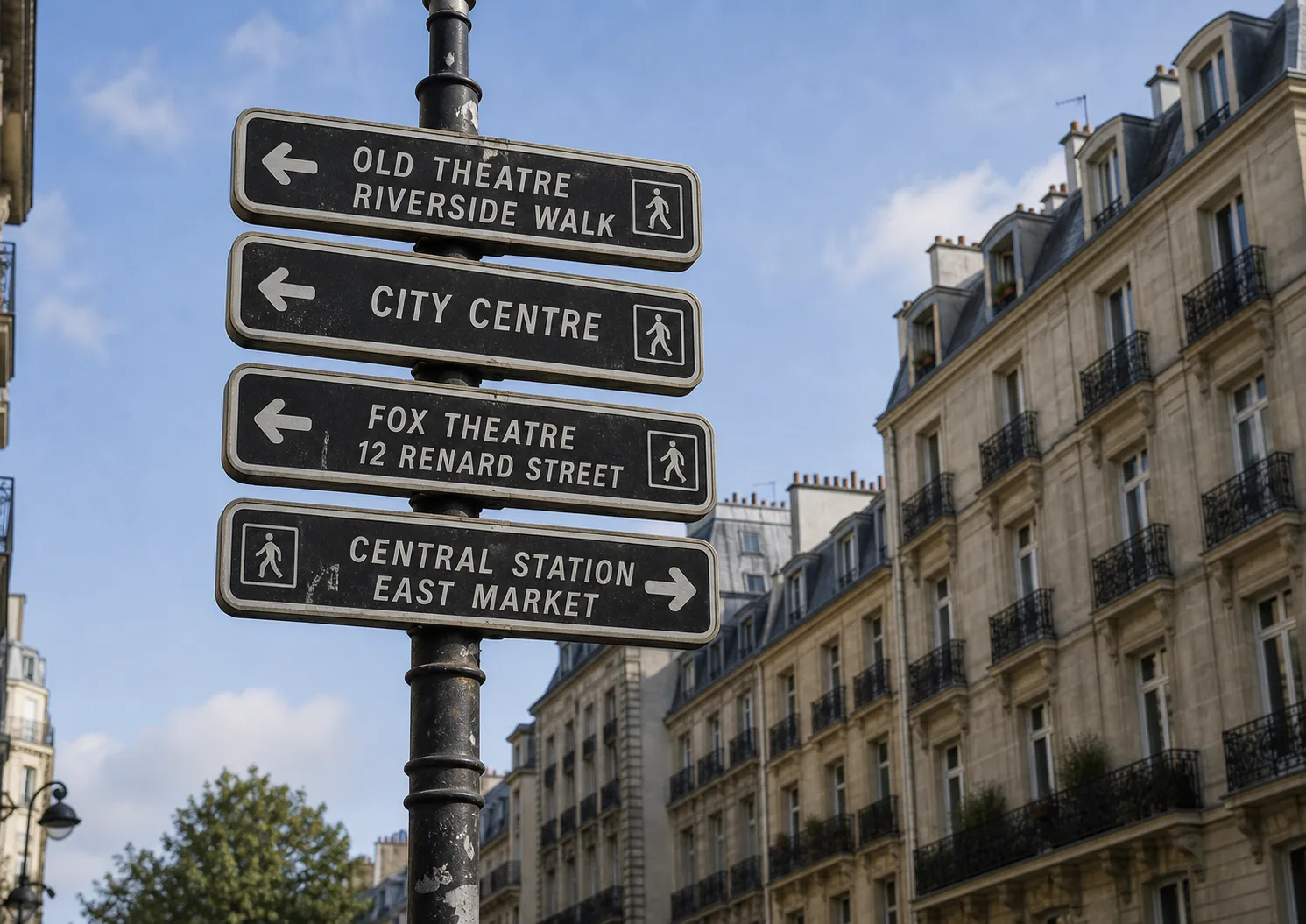
Use the AI image translator as a screenshot translator for app screens, websites, game interfaces, software messages, chats, and UI text. Upload the screenshot and translate screenshot text without retyping it.
Use the AI image translator to translate product image text from labels, packaging, marketplace pictures, size charts, callouts, or instruction images. This image text translator helps users understand product details faster.
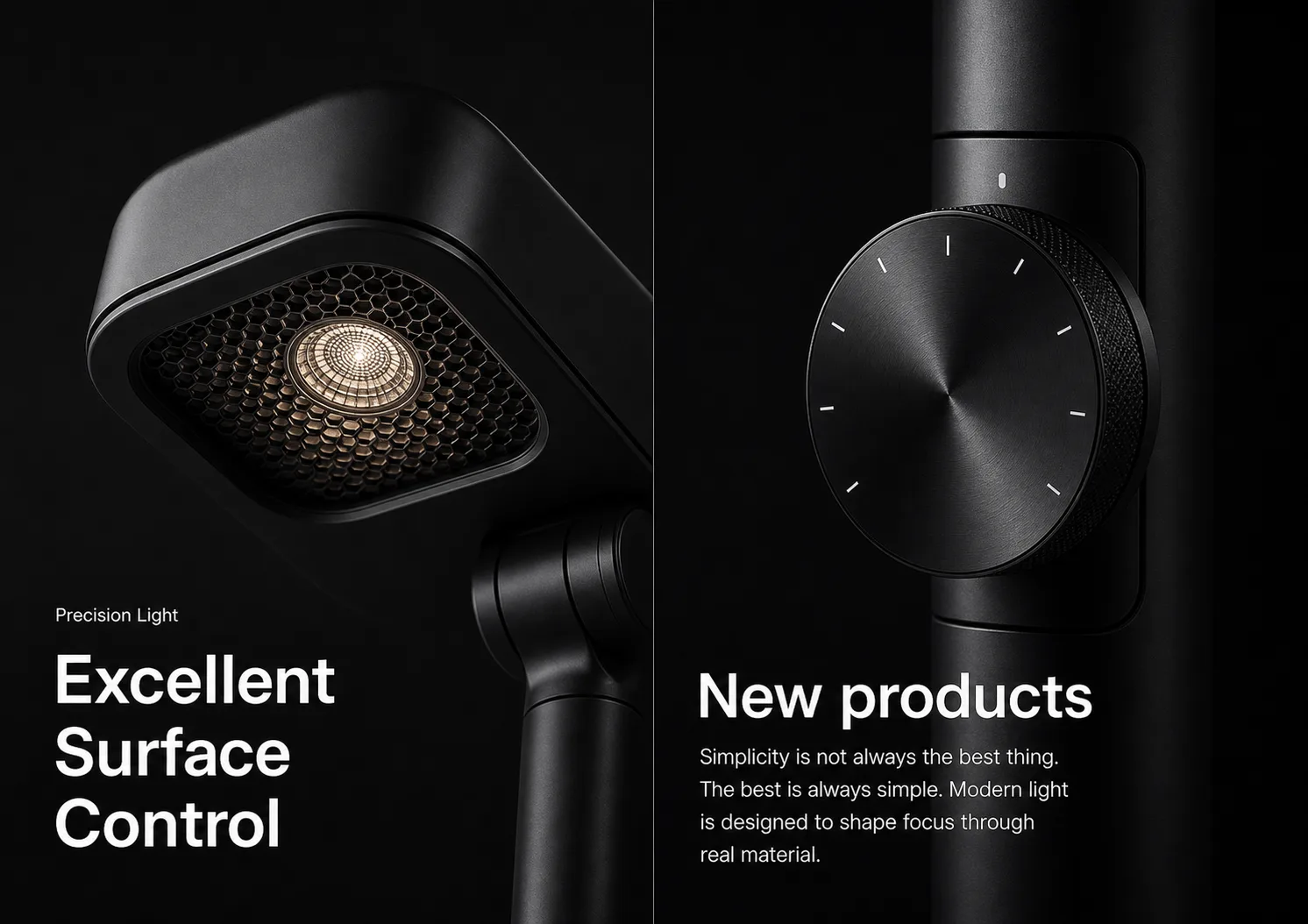
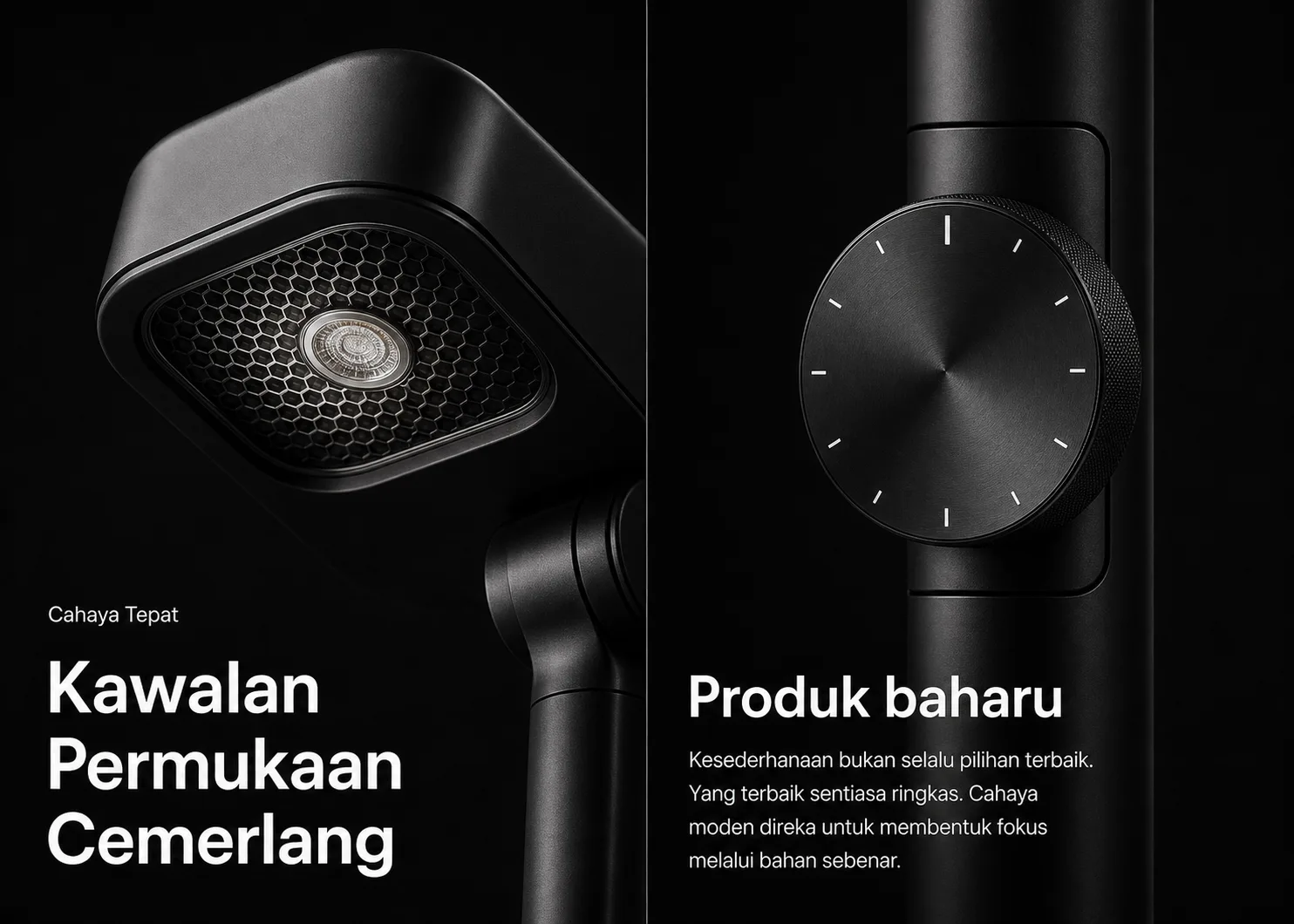
Use the AI image translator when your main goal is to translate photo to English. English is the default target language, but you can also choose Spanish, Chinese, Japanese, Korean, French, German, or Portuguese.
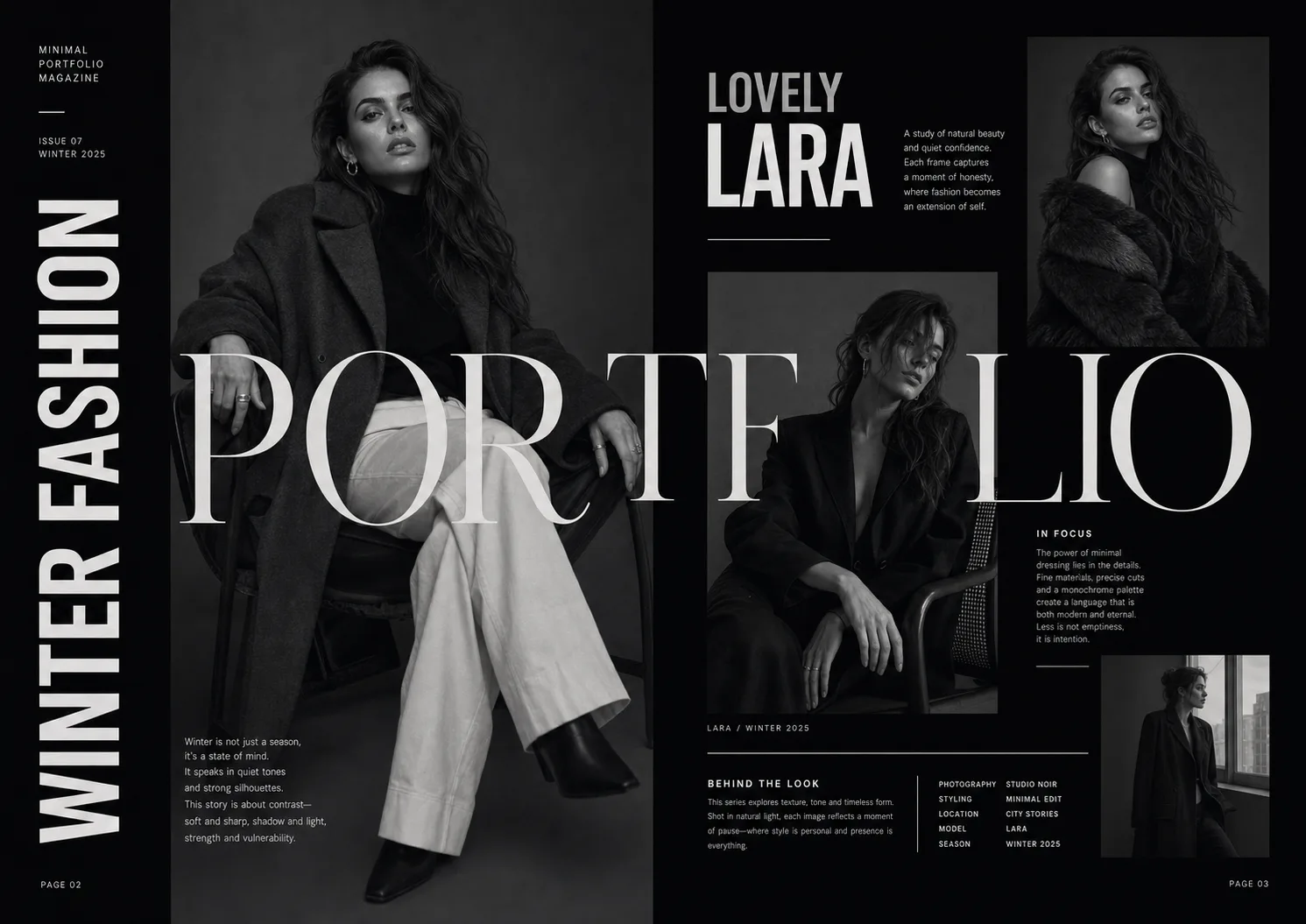
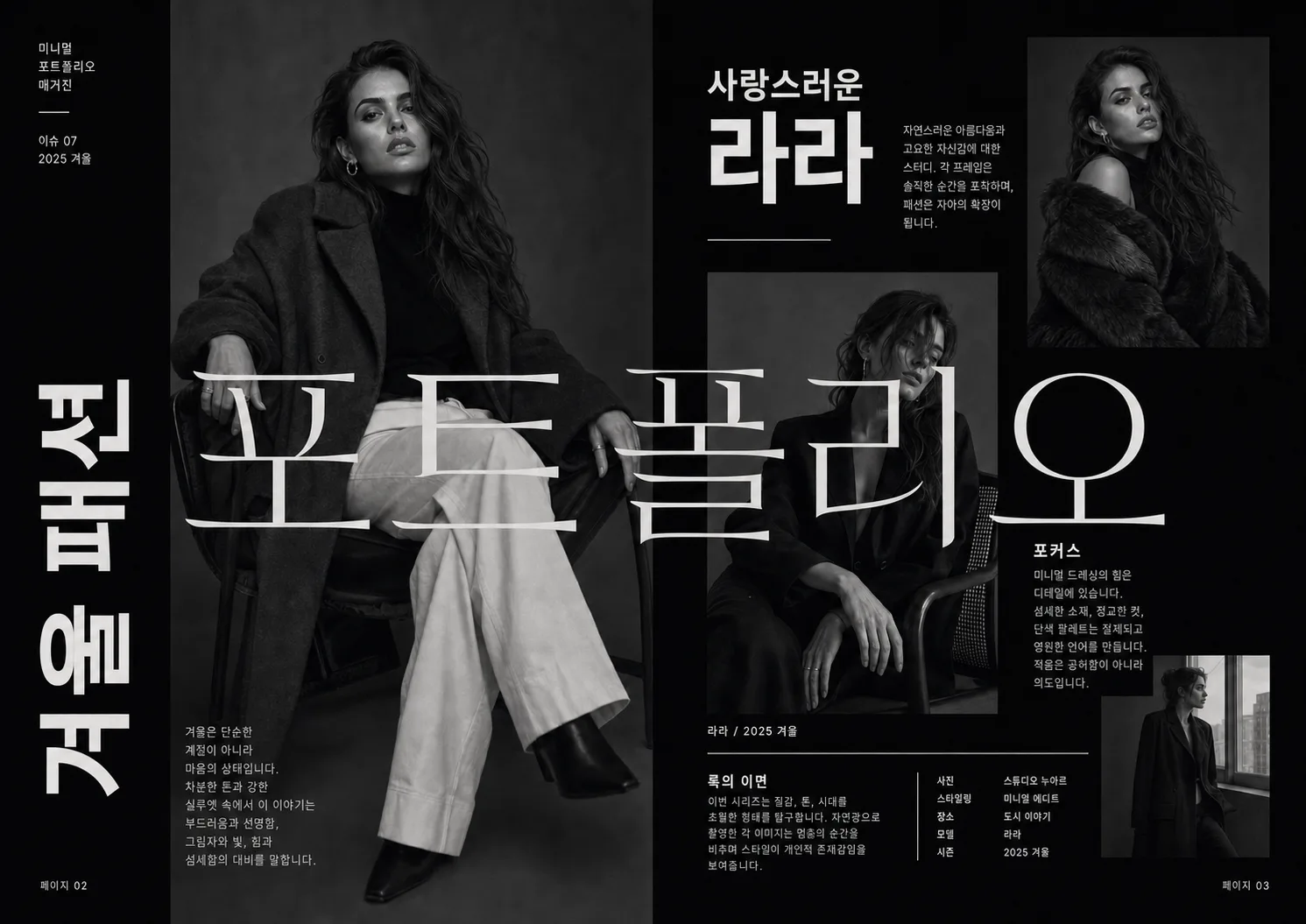
An AI image translator is an online tool that reads text inside an image with OCR and translates the extracted text into another language. Instead of typing words from a photo or screenshot by hand, you can upload one image, let the tool detect the visible text, and get a translated result in your target language.
This AI image translator is built for clear images with printed text, such as menus, signs, screenshots, labels, packaging, product photos, posters, manuals, receipts, study images, and business images saved as pictures. It focuses on extracting and translating image text, then showing the translated text clearly. It does not replace text inside the original image, redraw the design, or preserve the original layout.
Upload a clear image, choose a target language, and click the translate button. The AI image translator reads the image text, translates it, and shows the original OCR text with the translated result.
Yes. The AI image translator should detect the source language automatically, so you only need to choose the target language before translating the image text.
The MVP AI image translator supports English, Spanish, Chinese, Japanese, Korean, French, German, and Portuguese as target languages. English should be the default target language for users who want to translate image to English.
The AI image translator works best with clear printed text, strong contrast, and readable image quality. Screenshots, menus, signs, labels, product photos, packaging, posters, and manuals are good examples.
Good inputs are images where the text is large enough to read, not heavily blurred, and not hidden behind reflections or complex backgrounds. If the original image is too small, dark, tilted, or handwritten, OCR may miss words and the translation may be less reliable. A cleaner image gives the AI image translator a better chance to extract accurate text.
Yes. The AI image translator can work as a screenshot translator when the screenshot contains readable text from an app, website, game, document, or interface.
Yes. The AI image translator is a strong fit for menu photos, travel signs, food labels, packaging, and product pictures when the text is clear enough for OCR.
Accuracy depends on image clarity, text size, contrast, language, and layout. The AI image translator should be positioned as practical and fast, but the page should not promise perfect recognition or a fixed accuracy percentage.
No. This AI image translator extracts and translates text, then displays the translated result separately. It does not replace text inside the original image or redraw the picture layout.
The AI image translator uses your uploaded image to read and translate the visible text during the request. For sensitive information, review the privacy policy before uploading private images.